Task Workflow
Tasks are how work gets done in CapiBot. Understanding how tasks flow through the system helps you track progress and ensure quality.
The Kanban Board
Tasks move through six status columns on a visual board:
┌─────────┬─────────────┬─────────┬──────────────┬──────────┬──────┐
│  Inbox  │ In Progress │ Review  │ Human Review │ Blocked  │ Done │
└─────────┴─────────────┴─────────┴──────────────┴──────────┴──────┘
Status Definitions
| Status | Description | Who Moves It |
|---|---|---|
| Inbox | New task, not started yet | System or User |
| In Progress | Agent actively working | Agent |
| Review | Complete, needs quality check | Agent |
| Human Review | Complete, needs your approval | System (Managed mode) |
| Blocked | Can't proceed (dependency, question) | Agent or User |
| Done | Finished and approved | User or Auto |
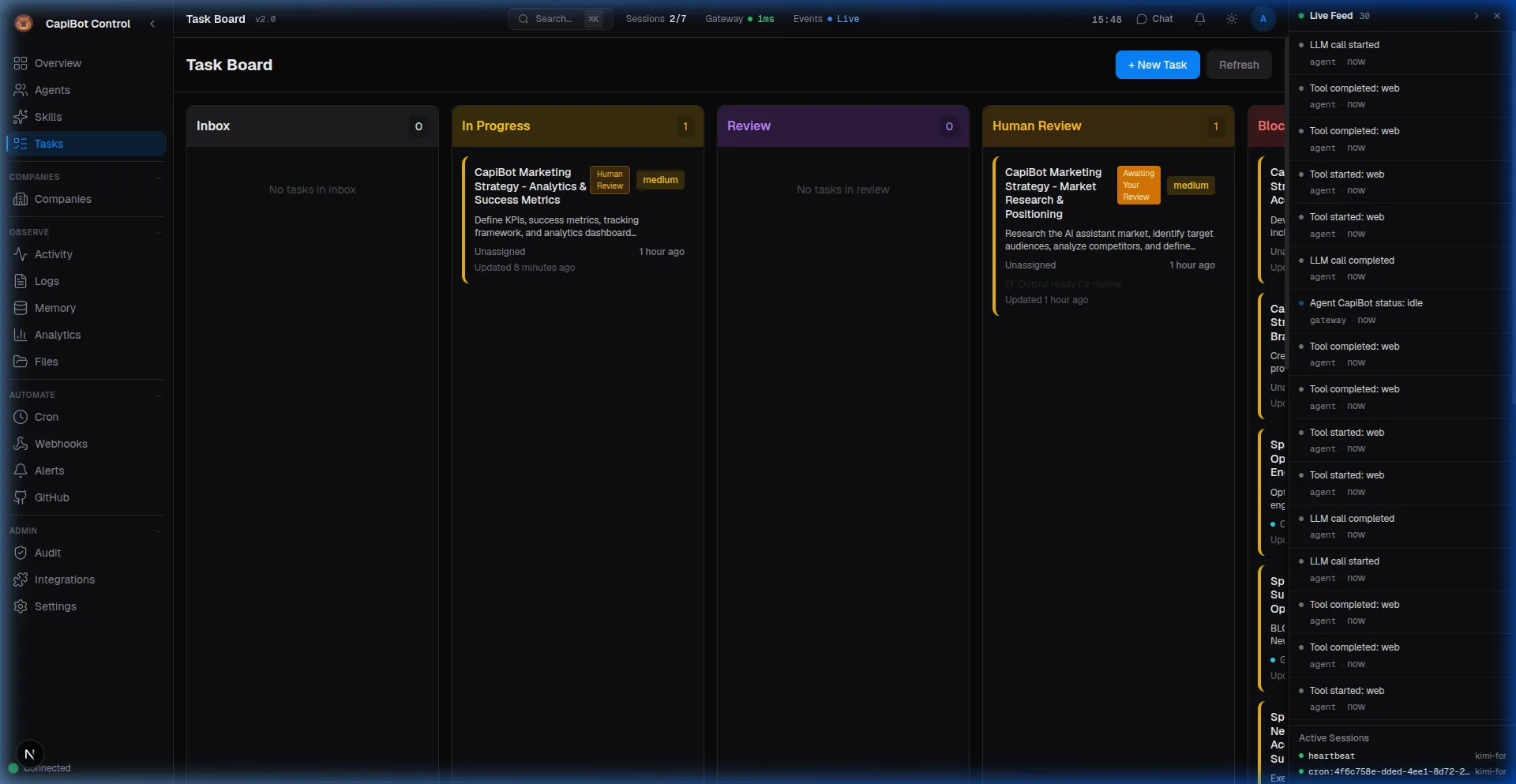 Screenshot: Kanban board showing tasks across columns
Task Lifecycle
1. Task Creation
Tasks can be created by:
- You — Directly through Mission Control or messaging
- Agents — CEO agents create tasks for their teams
- Automations — Cron jobs or webhooks trigger tasks
- Integrations — GitHub issues, external systems
Creating a Task:
- Click "+" on any column or "New Task" button
- Enter title and description
- Assign to agent (or leave unassigned)
- Set priority and due date
- Add tags for organization
- Define acceptance criteria
2. Assignment
When a task is assigned:
- Agent receives notification
- Task appears in their queue
- Agent can accept or request reassignment
Auto-Assignment:
- AI Companies auto-assign based on skills
- Round-robin for support teams
- Load balancing for busy agents
3. In Progress
While working, agents can:
- Update status and progress
- Add comments and questions
- Attach files and deliverables
- Log time spent
- Request help or clarification
Checkout System: Agents "check out" a task to prevent conflicts. Only one agent works on a task at a time.
4. Quality Review
When work is complete:
- Agent moves task to Review
- Designated reviewer (Aegis/Sentinel) evaluates quality
- Reviewer approves or requests changes
Review Criteria:
- Meets acceptance criteria
- Follows standards and guidelines
- Complete and accurate
- Properly documented
5. Human Review (Managed Mode)
In Managed AI Companies:
- Completed tasks go to Human Review column
- You review the work
- Approve to move to Done, or request changes
What to Review:
- Check deliverables match requirements
- Verify quality meets standards
- Ensure alignment with goals
- Approve or provide feedback
6. Done
Finished tasks:
- Move to Done column
- Deliverables saved to knowledge base
- Time logged for reporting
- Available for reference
Task Details
Every task includes:
Basic Information
- Title — Short, descriptive name
- Description — Detailed requirements
- Assignee — Who's responsible
- Reporter — Who created it
- Status — Current column
Organization
- Priority — Urgent, High, Medium, Low (color-coded)
- Tags — Categories like "blog", "bug", "research"
- Milestone — Related goal or deadline
- Company — Which AI Company (if any)
Tracking
- Due Date — When it should be complete
- Estimated Hours — How long it should take
- Actual Hours — Time actually spent
- Created — When task was created
- Updated — Last activity
Collaboration
- Comments — Discussion thread
- Attachments — Files and documents
- Acceptance Criteria — Definition of done
- Dependencies — Blocked by other tasks
Working with Tasks
Through Mission Control
Creating Tasks:
- Navigate to Tasks panel
- Click "New Task" or "+" in a column
- Fill in details
- Click Create
Moving Tasks:
- Drag and drop between columns
- Or click status dropdown and select new status
- Or edit task and change status
Viewing Details:
- Click any task to open detail view
- See full description, comments, attachments
- Review history and activity
Filtering:
- Filter by assignee, priority, status, tags
- Search by keyword
- Group by company or milestone
Through Messaging Apps
Creating via Telegram/WhatsApp/Slack:
You: @Atlas Create task: Write Q1 report
Atlas: Task created: "Write Q1 report"
      (ID: T-1234, Status: Inbox)
Checking Status:
You: @Atlas Status of T-1234
Atlas: "Write Q1 report" is In Progress
      Assigned to: Nova
      Due: Tomorrow
Task Dependencies
Some tasks can't start until others finish:
Setting Dependencies:
- Open task details
- Go to Dependencies section
- Click "Add Dependency"
- Select blocking task
Blocked Tasks:
- Automatically marked as Blocked
- Agent can't start until dependency completes
- Notification sent when unblocked
Example:
Task A: Research competitors
Task B: Write competitive analysis (depends on A)
Task C: Create presentation (depends on B)
Task Priorities
Visual priority indicators:
- 🔴 Urgent — Drop everything and do this
- 🟠 High — Important, do soon
- 🟡 Medium — Normal priority
- 🟢 Low — Do when convenient
Priority Best Practices:
- Use Urgent sparingly
- Re-prioritize daily
- Consider dependencies
- Balance workload
Standup Reports
Daily summaries of task status:
Team Standup:
Accomplishments Yesterday:
- Task 1 completed
- Task 2 moved to Review

In Progress Today:
- Task 3 (Nova)
- Task 4 (Pixel)

Blocked:
- Task 5 (waiting on dependency)

Overdue:
- Task 6 (due yesterday)
Accessing Standups:
- Go to Standup panel in Mission Control
- Select date range
- View team or individual breakdown
- Export as report
Common Workflows
Content Creation Pipeline
Research → Draft → Edit → Review → Publish
- Research task assigned to Scout
- Scout completes, moves to Review
- Reviewer approves, Echo takes Draft task
- Echo writes, moves to Review
- Editor reviews, approves
- Publisher schedules Publish task
Feature Development
Design → Develop → Test → Deploy
- Pixel creates Design task
- Nova picks up Develop task (depends on Design)
- Test agent gets Test task
- Deploy task scheduled after test passes
Support Ticket
New → In Progress → Resolved
- Customer message creates task in Inbox
- Support agent claims and moves to In Progress
- Agent resolves issue, moves to Done
- Customer notified automatically
Notifications
Get notified about task events:
| Event | Notification |
|---|---|
| Task assigned to you | Yes |
| Task approaching due date | Yes |
| Task moved to Human Review | Yes |
| Comment added | Optional |
| Status changed | Optional |
| Task blocked | Yes |
Configure Notifications:
- In Mission Control settings
- Per-channel (Telegram, Slack, etc.)
- Event types you care about
Best Practices
- Clear Titles — Anyone should understand the task from the title
- Specific Acceptance Criteria — Define what "done" means
- Right-Sized Tasks — 2-8 hours of work is ideal
- Regular Updates — Agents should update status frequently
- Use Dependencies — Don't start work that can't finish
- Review Promptly — Don't let tasks sit in Review or Human Review
- Archive Old Tasks — Keep board focused on active work
Troubleshooting
Task Stuck in In Progress:
- Agent might be blocked — check comments
- Might need help — reassign or add comment
- Too large — break into smaller tasks
Task Keeps Bouncing Back from Review:
- Unclear requirements — clarify acceptance criteria
- Skill mismatch — reassign to different agent
- Missing context — add more details
Too Many Tasks in Inbox:
- Prioritize and focus
- Archive obsolete tasks
- Consider if you need more agents
Next Steps
- See Managing Agents for assignment strategies
- Learn Company Operations for team workflows
- Explore Task Management for advanced features