Skills
Skills are how you teach CapiBot agents new capabilities without writing code. Think of skills as specialized training manuals that agents can read to learn how to do specific tasks.
What Are Skills?
A skill is a Markdown file with instructions that teaches an agent how to perform a specific task or work with a specific tool. When an agent needs to do something, it reads the relevant skill and follows the instructions.
┌─────────────────────────────────────────────────────────┐
│  User Request: "Schedule a daily report"                │
│                                                         │
│  Agent: "I need the cron skill for this"                │
│                                                         │
│  ┌──────────────┐                                       │
│  │  Read Skill  │                                       │
│  │  "cron"      │                                       │
│  └──────────────┘                                       │
│         ↓                                               │
│  ┌──────────────┐                                       │
│  │  Follow      │                                       │
│  │  Instructions│                                       │
│  └──────────────┘                                       │
│         ↓                                               │
│  ✓ Task Complete                                        │
└─────────────────────────────────────────────────────────┘
Built-in Skills
CapiBot comes with 8 built-in skills ready to use:
1. Composio — Third-Party App Integration
What it does: Connect to 1000+ apps (Notion, Linear, Jira, Slack, GitHub, etc.)
When to use:
- Creating pages in Notion
- Creating issues in Linear/Jira
- Sending Slack messages
- Any app integration
Example:
You: Create a Notion page with my meeting notes

Agent: [Uses composio skill]
       1. Check what apps are connected
       2. Find the "create page" action
       3. Execute with your meeting notes

       ✅ Created page "Meeting Notes" in Notion
Key instructions:
- Always check connected apps first
- List available actions before executing
- Use exact action slugs (e.g.,
NOTION_CREATE_NOTION_PAGE) - Confirm before write operations
2. Cron — Scheduling Tasks
What it does: Schedule reminders and recurring tasks
When to use:
- Daily standup reports
- Weekly summaries
- Deadline reminders
- Recurring health checks
Example:
You: Remind me to review the blog post every day at 9am

Agent: [Uses cron skill]
       Scheduled daily reminder at 9:00 AM
       Message: "Review blog post"

       ✅ Daily reminder set
Time expressions:
- "every 20 minutes" →
every_seconds: 1200 - "every hour" →
every_seconds: 3600 - "every day at 8am" →
cron_expr: "0 8 * * *" - "weekdays at 5pm" →
cron_expr: "0 17 * * 1-5"
3. GitHub — Repository Operations
What it does: Work with GitHub repos using the gh CLI
When to use:
- Creating issues
- Reviewing pull requests
- Checking repository status
- Managing releases
Example:
You: Check if there are any open PRs in the capibot repo

Agent: [Uses github skill]
       3 open pull requests:
       1. #45 - Fix authentication bug
       2. #46 - Add dark mode support
       3. #47 - Update documentation
4. Weather — Weather Information
What it does: Get current weather and forecasts
When to use:
- Planning outdoor events
- Travel preparation
- Quick weather checks
Example:
You: What's the weather like in Bogota today?

Agent: [Uses weather skill]
       Bogota, Colombia
       ☁️  Partly cloudy
       🌡️  18°C / 64°F
       💧  65% humidity
       🌬️  Light breeze
5. Summarize — Text Condensation
What it does: Summarize long content
When to use:
- Summarizing web articles
- Condensing long documents
- YouTube video summaries
- Meeting notes
Example:
You: Summarize this article: [long URL]

Agent: [Uses summarize skill]
       Here's the summary (3 min read):

       • Key point 1...
       • Key point 2...
       • Key point 3...
6. TMux — Terminal Session Management
What it does: Remote-control tmux sessions
When to use:
- Managing long-running processes
- Remote server management
- Session persistence
Example:
You: Start a tmux session for the server logs

Agent: [Uses tmux skill]
       Created tmux session "server-logs"
       Running: tail -f /var/log/server.log

       You can reattach with: tmux attach -t server-logs
7. Skill Creator — Create New Skills
What it does: Create custom skills for specialized tasks
When to use:
- Unique workflows
- Company-specific processes
- Domain expertise
- Repeated complex tasks
Example:
You: Create a skill for processing our expense reports

Agent: [Uses skill-creator skill]
       I'll create an "expense-processor" skill.

       What should this skill do?
       1. Extract data from receipts
       2. Categorize expenses
       3. Generate reports
       4. Export to accounting system
8. Playbook — Strategic Coordination
What it does: Multi-phase project coordination for AI Companies
When to use:
- Startup MVP development
- Marketing campaigns
- Enterprise feature development
- Incident response
Includes:
- 6-phase lifecycle (Discovery, Strategy, Foundation, Build, Hardening, Launch, Operate)
- Scenario runbooks
- Agent coordination templates
- Quality gates
How Skills Work
Progressive Disclosure
Skills use a three-level system to be efficient:
Level 1: Metadata (Always in Context)
---
name: composio
description: "Use 1000+ third-party apps via Composio..."
---
- ~100 words
- Helps agent decide when to use the skill
Level 2: SKILL.md Body (When Triggered)
# Composio — Third-party App Integration

## Workflow

1. Check what apps are connected
2. List available actions
3. Get action schema
4. Execute action
- Loaded only when skill is needed
- Contains the actual instructions
Level 3: Bundled Resources (As Needed)
skill-folder/
├── SKILL.md (main instructions)
├── scripts/ (helper scripts)
├── references/ (detailed docs)
└── assets/ (templates, etc.)
- Loaded only when referenced
- Keeps main skill file lean
Skill Triggering
When you make a request, the agent:
- Reads skill metadata — All installed skills
- Selects relevant skill — Based on description match
- Loads skill instructions — SKILL.md content
- Follows instructions — Executes the workflow
- Uses bundled resources — If needed
User: "Create a Notion page"

Agent thinks:
├─ Check skills metadata
│  ├─ "cron" — scheduling, not relevant
│  ├─ "composio" — third-party apps ✓ MATCH
│  ├─ "github" — repos, not relevant
│  └─ "weather" — weather, not relevant
│
├─ Load composio skill
│  └─ Read SKILL.md instructions
│
├─ Execute workflow
│  ├─ Check connected apps
│  ├─ Find "create page" action
│  ├─ Get parameter schema
│  └─ Execute action
│
└─ Done! Notion page created
Managing Skills
Viewing Installed Skills
Access: Nav rail → Skills
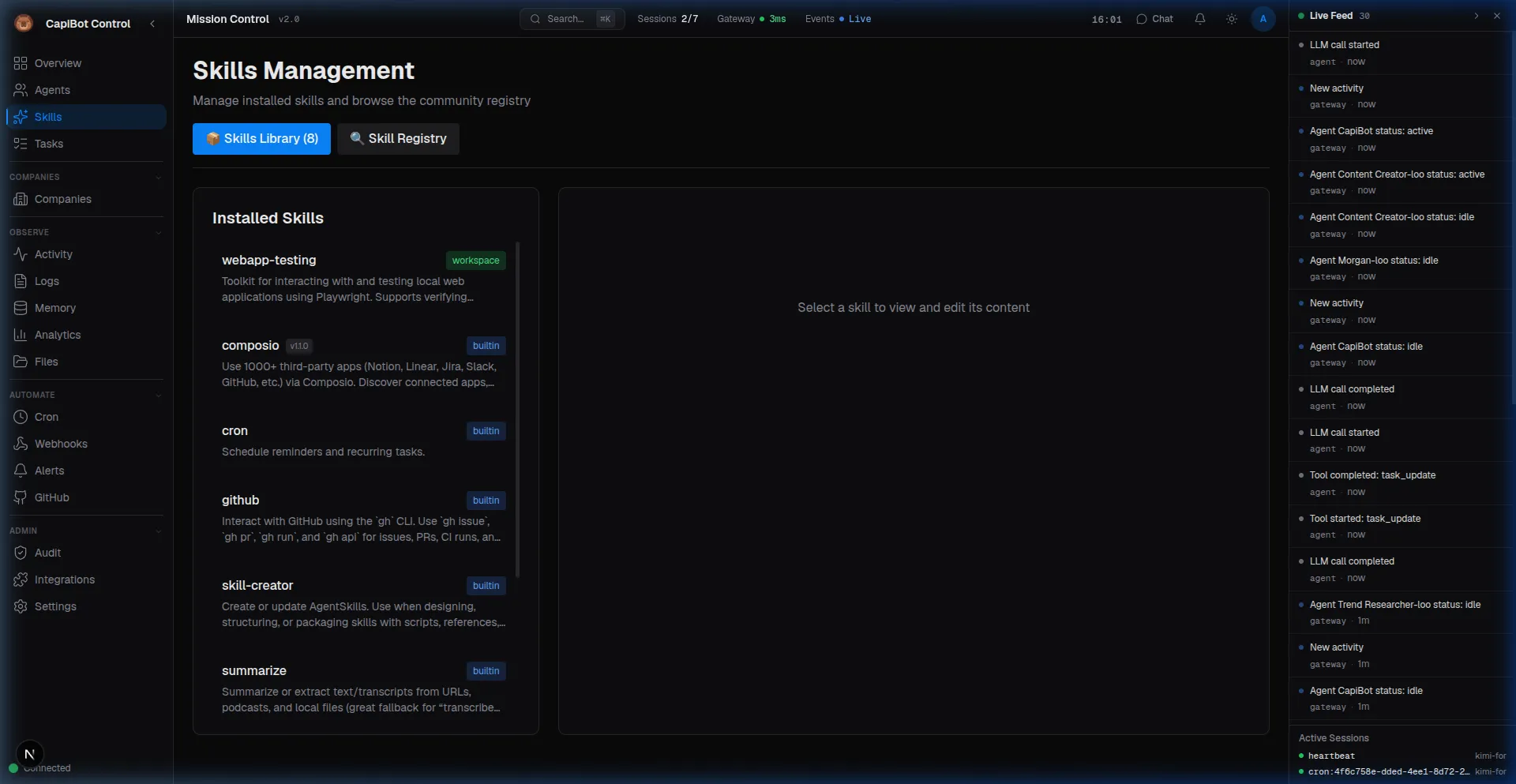 Screenshot: Mission Control Skills Library showing installed and community skills
┌─────────────────────────────────────────────────────────┐
│ Skills                                                  │
├─────────────────────────────────────────────────────────┤
│                                                         │
│ Built-in Skills                                         │
│                                                         │
│ 🔌 Composio        App integration                      │
│ 🕐 Cron            Scheduling                           │
│ 🐙 GitHub          Repository ops                       │
│ 🌤️  Weather          Weather info                       │
│ 📝 Summarize       Text condensation                    │
│ 💻 TMux            Terminal sessions                    │
│ ✨ Skill Creator   Create skills                        │
│ 📖 Playbook        Strategic coordination               │
│                                                         │
├─────────────────────────────────────────────────────────┤
│                                                         │
│ Community Skills                                        │
│ [Browse Registry]                                       │
│                                                         │
└─────────────────────────────────────────────────────────┘
Skill Details
Click any skill to see:
┌─────────────────────────────────────────────────────────┐
│ 🔌 Composio                                [Configure]  │
├─────────────────────────────────────────────────────────┤
│                                                         │
│ Use 1000+ third-party apps (Notion, Linear, Jira,       │
│ Slack, GitHub, etc.) via Composio. Discover connected   │
│ apps, list actions, and execute them.                   │
│                                                         │
│ Version: 1.1.0                                         │
│ Author: CapiBot Team                                   │
│                                                         │
│ Instructions Preview:                                  │
│ ━━━━━━━━━━━━━━━━━━━━                                   │
│ ## Workflow                                             │
│                                                         │
│ ### 1. Check what apps are connected                    │
│ composio(mode: "list_apps")                             │
│                                                         │
│ ### 2. Discover available actions...                    │
│ ━━━━━━━━━━━━━━━━━━━━                                   │
│                                                         │
│ [View Full Instructions]  [Test Skill]                  │
│                                                         │
└─────────────────────────────────────────────────────────┘
Installing New Skills
From Community Registry:
- Click "Browse Registry"
- Search or browse categories
- Click skill to view details
- Click "Install"
- Skill available immediately
From File:
- Click "+ Install from File"
- Upload
.skillfile - Verify installation
- Skill available immediately
Testing Skills
Before relying on a new skill, test it:
Skill: composio
Test: Create a test page in Notion

✅ Test passed
   Created page "Test" in Notion

   The skill is working correctly.
Removing Skills
To remove a skill:
- Find skill in Skills panel
- Click "..." menu
- Select "Uninstall"
- Confirm removal
Note: Built-in skills cannot be removed.
Creating Custom Skills
When to Create a Skill
Create a custom skill when:
✅ Unique Workflow
- Company-specific process
- Proprietary methodology
- Custom tool integration
✅ Repeated Complex Tasks
- Done frequently
- Multi-step process
- Requires domain knowledge
✅ Specialized Knowledge
- Industry expertise
- Company standards
- Best practices
✅ Integration Needs
- Custom API
- Internal tools
- Proprietary systems
Example: Creating an Expense Processor Skill
Scenario: Your team processes expense reports weekly with specific steps.
Step 1: Define the Skill
Name: expense-processor
Description: "Process expense reports following company policy.
Extract data from receipts, categorize expenses, validate against
policy limits, and generate reimbursement reports."
Step 2: Write SKILL.md
---
name: expense-processor
description: "Process expense reports..."
---

# Expense Report Processor

## Workflow

1. **Extract Data**
   - Read receipt images
   - Extract: date, merchant, amount, category
   - Validate totals

2. **Categorize**
   - Meals: $75 limit
   - Travel: No limit
   - Supplies: $100 limit
   - Entertainment: $50 limit

3. **Validate Policy**
   - Check per-category limits
   - Flag exceptions
   - Note approvals needed

4. **Generate Report**
   - Create summary
   - Export to CSV
   - Submit to accounting

## Categories and Limits

| Category      | Limit    | Requires Approval |
| ------------- | -------- | ----------------- |
| Meals         | $75/meal | >$75              |
| Travel        | No limit | -                 |
| Supplies      | $100     | >$100             |
| Entertainment | $50      | >$50              |
Step 3: Test the Skill
You: Process this expense report [receipts]

Agent: [Uses expense-processor skill]

       Processing 5 receipts...

       ✅ All within policy limits

       Summary:
       • Meals: $67, $45 (2 meals)
       • Travel: $340 (flight)
       • Supplies: $23

       Total: $475
       Report generated: expense-report-week1.csv
Skill Best Practices
For Skill Users
- Know Your Skills — Review what's installed
- Test New Skills — Before relying on them
- Give Feedback — Help improve skills
- Keep Updated — Install latest versions
For Skill Creators
- Clear Descriptions — Help agents trigger correctly
- Concise Instructions — Stay under 500 lines
- Progressive Disclosure — Use references for details
- Test Thoroughly — Real-world scenarios
- Version Control — Track changes
Anatomy of a Great Skill
Good SKILL.md Structure:
---
name: my-skill
description: "Clear, comprehensive description of what this
skill does and when to use it."
---

# My Skill

## Quick Start

Brief overview and simple example

## Workflow

Step-by-step instructions

## Examples

Common use cases

## Advanced

Links to references for details
Bad SKILL.md Structure:
---
name: my-skill
description: "Does stuff"  ← Too vague!
---

# My Skill

Lots of text explaining the theory... ← Too verbose!

More background information... ← Not actionable!
Troubleshooting
Skill Not Triggering:
- Check description is clear and specific
- Verify skill is installed
- Try more specific request
- May need to mention skill by name
Skill Triggering Wrong:
- Description may be too broad
- Add more specific triggers
- Consider splitting into multiple skills
Skill Instructions Unclear:
- Read SKILL.md yourself
- Update with clearer steps
- Add more examples
- Test with different inputs
Skill Outdated:
- Check for updates
- Review latest documentation
- Update bundled resources
- Consider creating new version
Next Steps
- Learn about Tool Categories
- Explore Company Tools
- Create your first custom skill
- Browse the Community Registry